Branches
Add a location, set its address, hours and order types, and tune tips, order ahead, reservations and till approvals per branch.
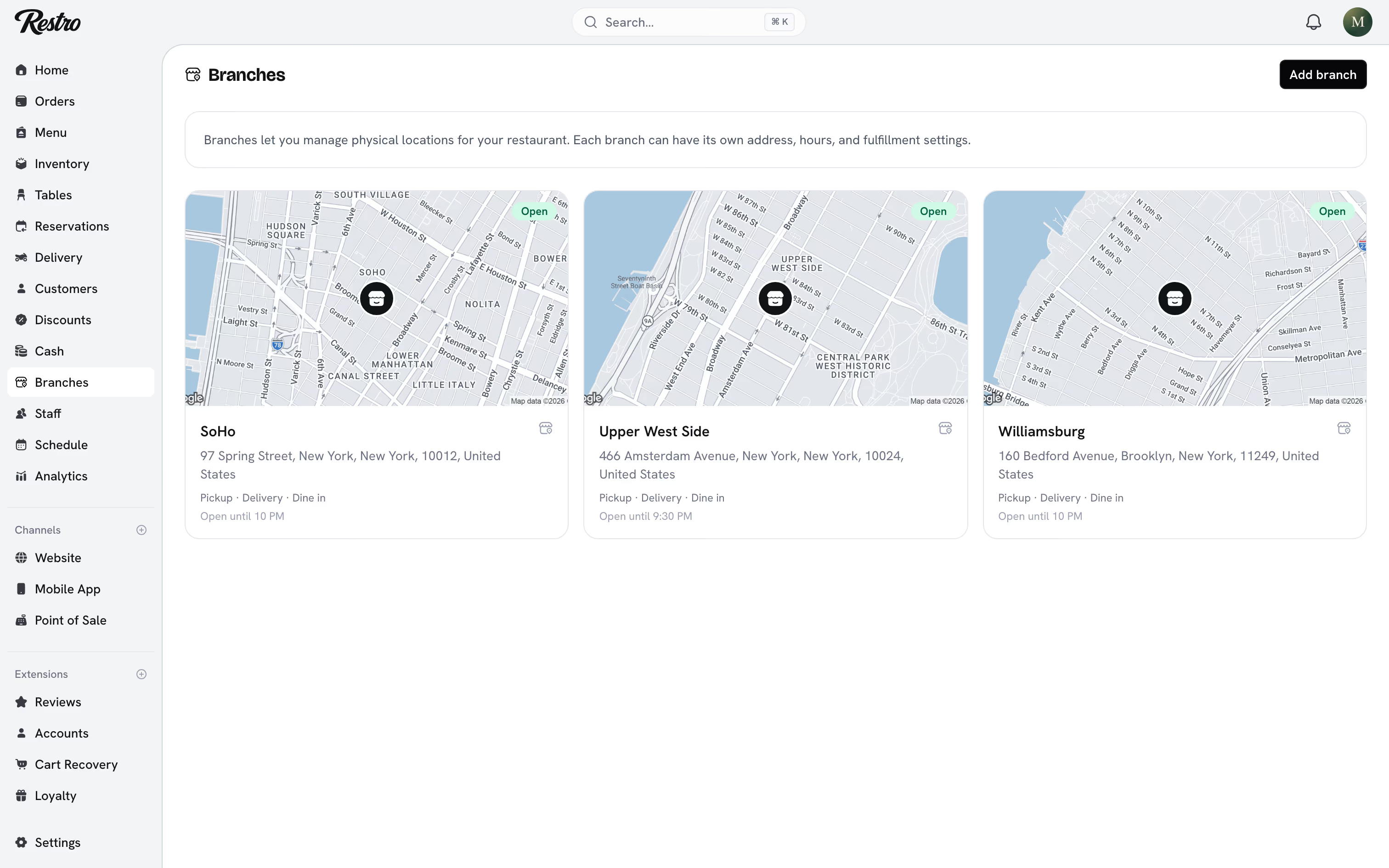
Branches lists each physical location of your restaurant. Every branch has its own address, hours, order types and settings. Sage & Salt runs SoHo, Williamsburg and Upper West Side differently from one dashboard.
#Add a branch
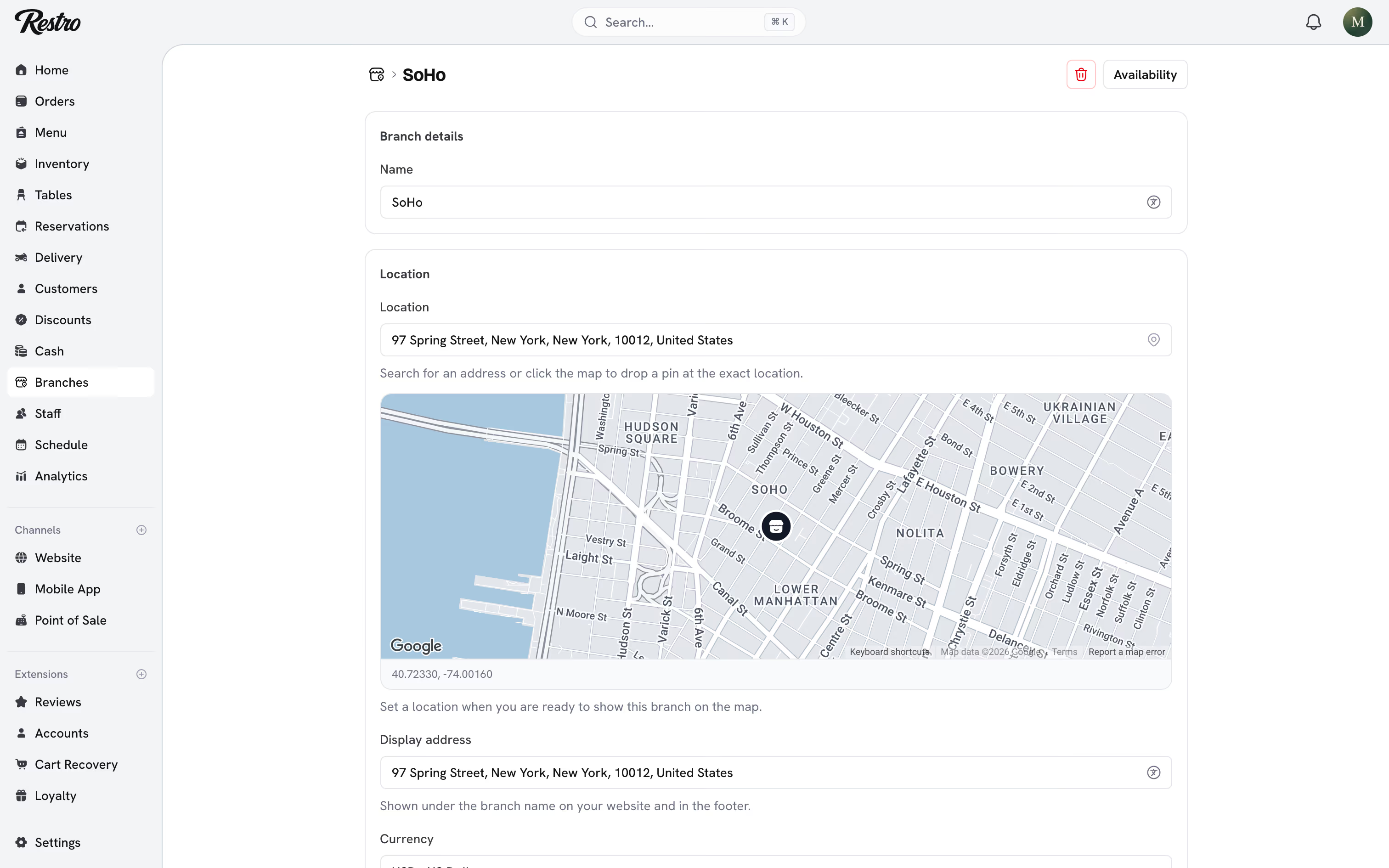
Click Add branch, give it a name, and set its Location by searching for the address on the map. The location is required, and it does more than place a pin:
- Customers ordering on your website are matched to the closest branch.
- Delivery zones are drawn around it.
- The branch's Timezone and Currency default from it. Change either if this branch should differ.
The Display address is the shorter version shown under the branch name on your website.
Owners and admins add and edit branches. Managers can view a branch and change its status. Your plan sets how many branches you can have. See Plans and billing.
#Opening hours
Under Working hours, set the times for each day of the week. Use Apply to all to fill every day at once, then adjust the exceptions. A day can have several time ranges, for a break between lunch and dinner, or be switched to Closed.
#Open, Busy and Closed
Each branch card shows Open within its working hours and Closed otherwise. For a holiday or a rush, click Availability on the branch and choose an override:
| Override | What customers see |
|---|---|
| Follow schedule | Orders follow your working hours automatically |
| Busy | Still accepting orders, with a warning about longer waits |
| Temporarily closed | No orders until the override ends or you switch back |
For Busy and Temporarily closed, add a Message for customers, such as "Kitchen at capacity, expect an extra 20 minutes". Set Override until to end it automatically, or leave it empty to keep the override until you switch back.
#Order types
Under Fulfillment options, choose how customers can order from this branch: Pickup, Delivery, Dine in and Drive-thru. New branches start with Pickup on. A branch with no order types shows a warning on its card.
- Delivery also needs delivery zones and the Delivery feature. Click Configure delivery zones to draw them. See Delivery.
- Dine in unlocks QR code ordering, where guests scan the code on their table and order from their phone. Choose whether orders are paid when ordering or added to the table tab, and when an untouched tab closes. See Tables.
#Tipping
Turn on Accept tips to show a tip step on your website, in your app and on the point of sale. Set up to four Suggested percentages, optionally a Preselected suggestion, and whether customers can type a custom amount. Calculate percentages on decides whether a discount reduces the tip. Tips are never taxed and are reported separately.
#Order ahead
Turn on Accept scheduled orders to let customers pick a future time slot at checkout. Slots come from the branch's working hours. Choose the Slot length, from 15 minutes to 2 hours, how many days ahead customers can book, and the minimum notice. You can also cap the orders per slot and set how long before its slot a pre-order reaches the kitchen display. See Scheduled orders.
#Reservations
Turn on Accept online reservations to show a "Reserve a table" option on your website for this branch. Then choose:
- Send a reminder: email and text the guest before their table, from two hours to two days ahead.
- Mark no-shows automatically: flag a booking as a No-show when nobody is seated a set number of minutes past the booked time.
- Take a deposit on big tables: ask parties from a chosen size to pay an amount per guest when booking online. It is refunded in full if they cancel before the cutoff.
See Reservations.
#Voids, comps and refunds
Under Voids, comps and refunds, set the reasons your till offers. Voids are for an item that was never made, comps for one that was made and given away, refunds for money already taken. Leave a list empty to use the built-in reasons.
Manager approval above sets an amount. Anything worth more than it needs a manager's PIN, even from staff who are allowed to void and refund. Leave it at 0 to skip the check. See Taking payment.
#Contact details per branch
Each branch can show its own phone number and email instead of the central ones. Turn on Customize by branch under Settings → General and enter the details for each location.
#Deleting a branch
Heads up
Delete branch removes the branch and its delivery zones for good. Orders that belonged to it stay, but no longer show a location. You cannot delete your only branch.
Did this page miss something? Tell us.
Back to top