Devices
Pair the terminals that run your staff apps, read their health at a glance, register card readers, and remove a lost device.
Settings → Devices lists every terminal running the point of sale, the kitchen display, the waiter app or the driver app. A terminal is paired once to your restaurant and a branch, and staff sign in on top of it with their PIN.
#Two ways to pair
Sign in on the device. Open the app, sign in with your own account, and pick the restaurant and branch for this terminal. You are not left signed in afterwards. The terminal belongs to the branch, not to you.
Use a pairing code. Best when someone without a manager account is setting up the terminal, or when you are doing it from your desk.
#Pairing with a code
Click Pair a device, choose the app and the branch, and give the terminal a name such as Front counter or Kitchen pass. Click Generate code.
The code lasts fifteen minutes and works once. Whoever is holding the terminal types it into the app, and the screen confirms when the device is paired. If the code expires, generate another.
#Reading the list
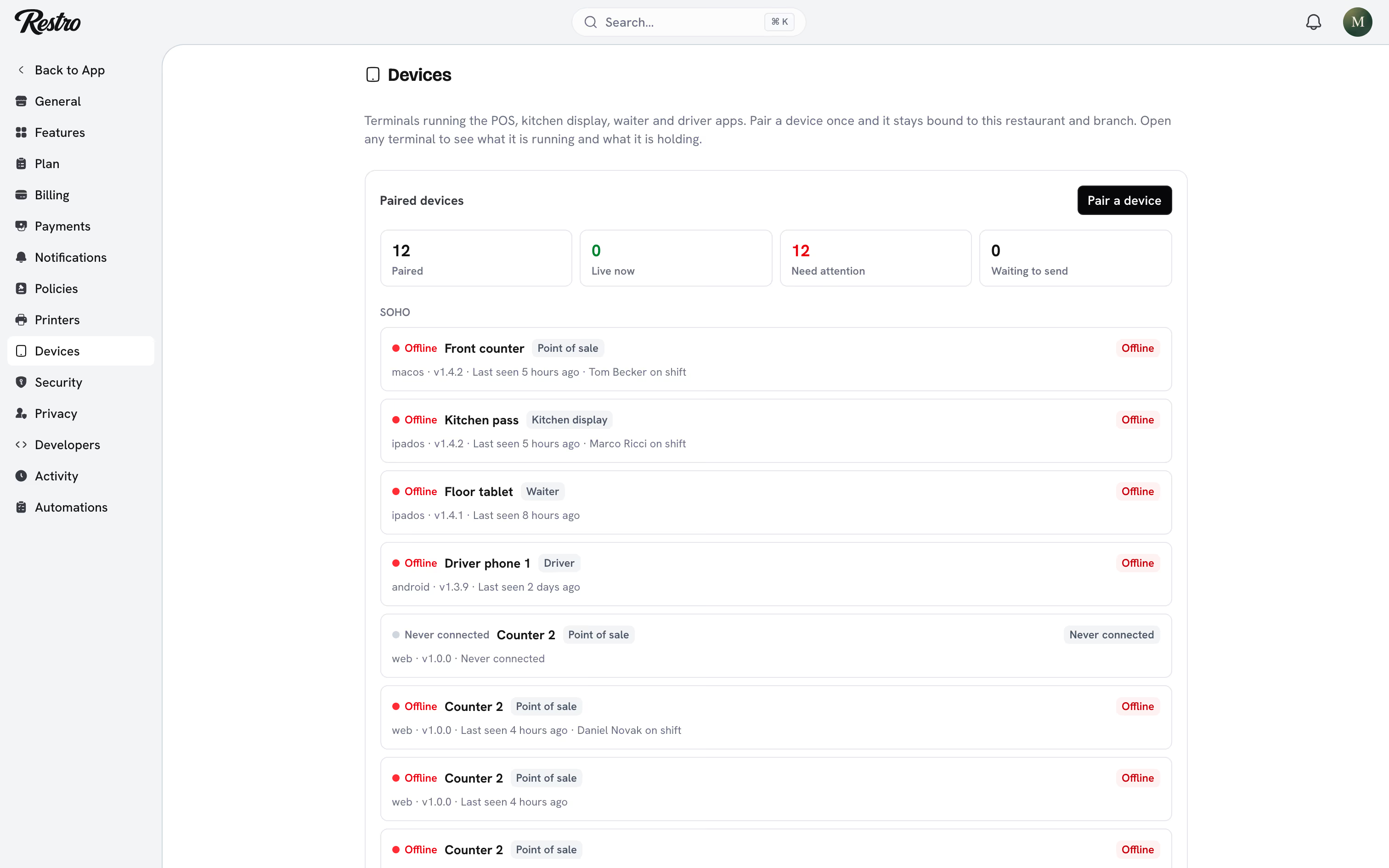
Four counters sit above the list: Paired, Live now, Need attention and Waiting to send. Below them, each row shows the app, the version, when it last checked in, what it is holding, and who is on shift. The dot on the left is the connection:
- Live: connected right now. Orders reach it the moment they are placed.
- Idle: checked in recently but not holding a connection. Usually a tablet that went to sleep.
- Offline: has not checked in for a while. A till that goes offline mid-service is the one to chase.
- Never connected: paired, but the app has not opened since.
#What needs attention means
A row picks up a badge when something is likely to become an incident, worst first:
- Update required: the app is too old to keep trading. See Forced updates below.
- Offline: quiet through what should be a service.
- Stuck orders: orders the terminal tried to send that were rejected. Look at them on the till.
- Queue not draining: orders waiting more than ten minutes.
- Crashing: the app has crashed three times or more.
- Far behind: two or more releases behind. Not urgent, but worth scheduling.
#Looking at one terminal
Click a row to open it. The panel shows the installed version against the current and minimum supported ones, who is signed in, what is waiting to send, its crash count, and who paired it and when.
Request diagnostics asks the terminal for a fuller report on its next check-in. It contains no order or customer details. Sign everyone out ends every shift on the terminal. Whoever is on it taps back in with their PIN.
#Renaming and moving
Click Edit to rename a terminal or move it to another branch. Moving signs everyone out and clears the orders and menu it held for its old branch. Rename freely. Move only when the hardware has actually moved.
#Removing a lost device
Remove device cuts a terminal off in one step. It stops working immediately, anyone signed in is signed out, and its connection drops within seconds. Orders it already sent are untouched, and the pairing and removal both stay in the activity log. The same hardware can be paired again with a fresh code.
#Forced updates
When an update is merely available, the terminal shows a small strip offering it and staff carry on. When a release changes how payments or kitchen orders are recorded, older versions stop trading and show a full screen explaining how to update. This is deliberately rare.
Nothing captured is lost. Orders taken offline stay on the terminal and send themselves once the update is installed.
#Card terminals
The card readers your tills charge on are registered under Card terminals on the same page. They run on the Stripe or Adyen account configured under Settings → Payments. If neither is set up, the point of sale takes cash only.
Click Add a terminal and pick a reader from the list your provider reports. Each reader belongs to one branch, and any till there can charge on it. Connection is Cloud, with nothing to configure, or Local, over your own network.
Disable takes a reader out of the till's list without forgetting it, useful while one is away for repair. Delete removes it for good. See Terminal hardware.
#Who can do this
Owners, admins and managers can pair, edit, sign out and remove devices, and register card readers. Supervisors can see the list and each terminal's panel. Managers and supervisors only see the terminals at their own branches.
Did this page miss something? Tell us.
Back to top