Order ahead
Let customers order for a later time slot, and keep pre-orders off the kitchen display until they need to start.
An order-ahead order is placed now and cooked later. The customer picks a time slot at checkout, pays as usual, and the order waits. It reaches the kitchen display shortly before its slot, so a 7pm collection is not sitting on the pass from 4pm.
Order ahead is off until you switch it on, and it is set per branch.
#Turning it on
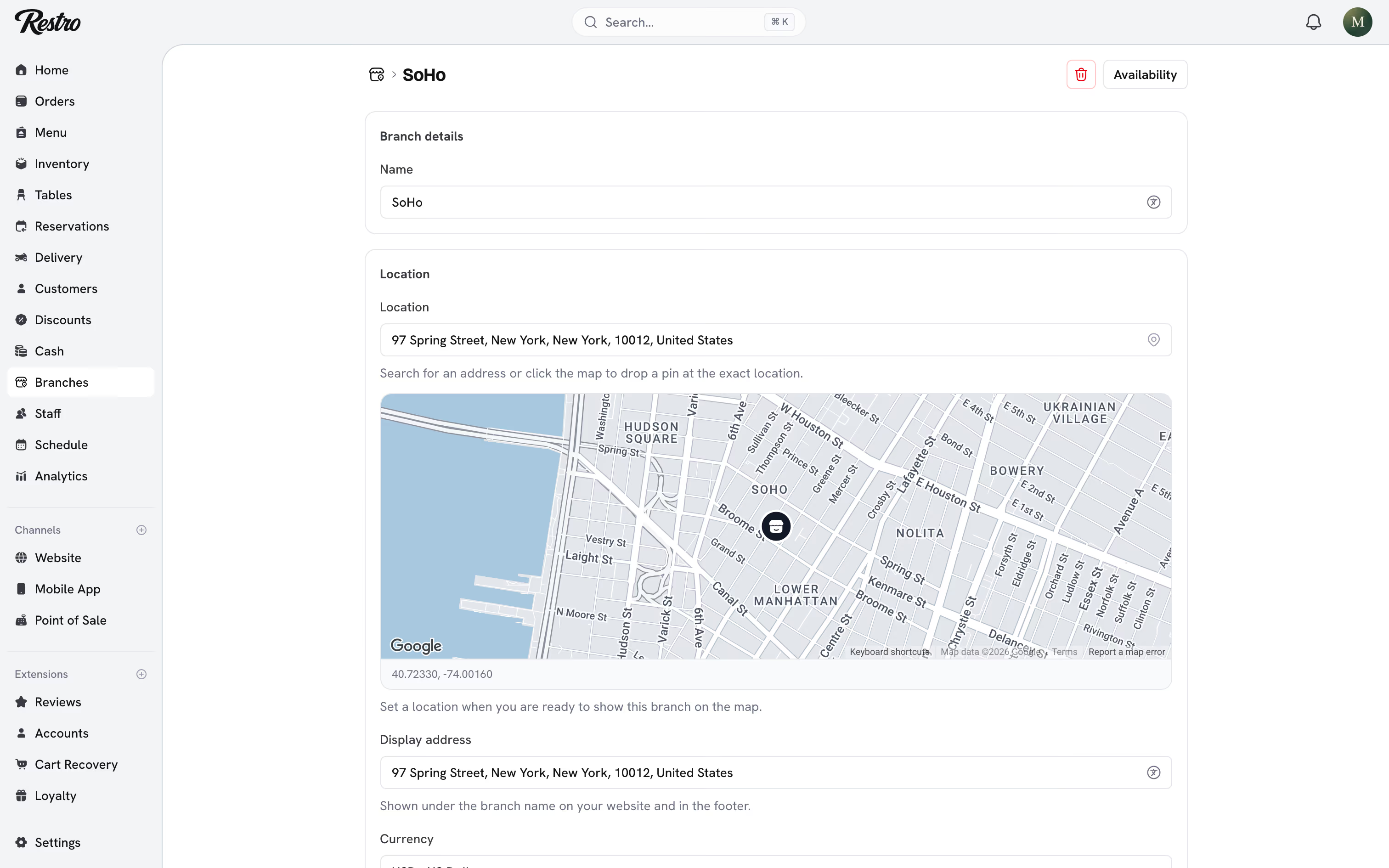
Open Branches → the branch → Order ahead and switch on Accept scheduled orders. Five settings control how it behaves.
| Setting | What it does |
|---|---|
| Slot length | How wide each bookable window is. A 30 minute slot offers 12:00 to 12:30, 12:30 to 1:00, and so on. |
| Send to the kitchen | How many minutes before the slot the order appears on the kitchen display. |
| Minimum notice | The earliest slot a customer can book, measured from now. Stops someone booking a slot five minutes out. |
| Days customers can book ahead | How far into the future slots are offered. |
| Orders per slot | How many pre-orders can land in one window. 0 means no limit. |
#Where slots come from
Slots come from the branch's working hours, including any break. A day marked closed offers nothing. A split day (open 9:00 to 12:00 and 3:00 to 7:00) offers no slots across the gap. A slot must fit entirely inside an open range, so a 30 minute slot is never offered at 4:45 when you close at 5:00.
Change the working hours and the slots follow. There is no separate schedule to keep in sync.
#Capacity
Orders per slot is how a kitchen protects itself. Set it to 6 and the seventh customer trying to book 12:30 sees that window marked full and picks another. Cancelled orders release their place.
The cap counts pre-orders only. Walk-ins and ordinary orders are not counted against it, so treat the number as the headroom you are willing to commit in advance.
#What the kitchen sees
Pre-orders do not appear in the live queue when they are placed. They wait in the Scheduled for later panel above the tickets, showing each order's number, item count and due time with a countdown.
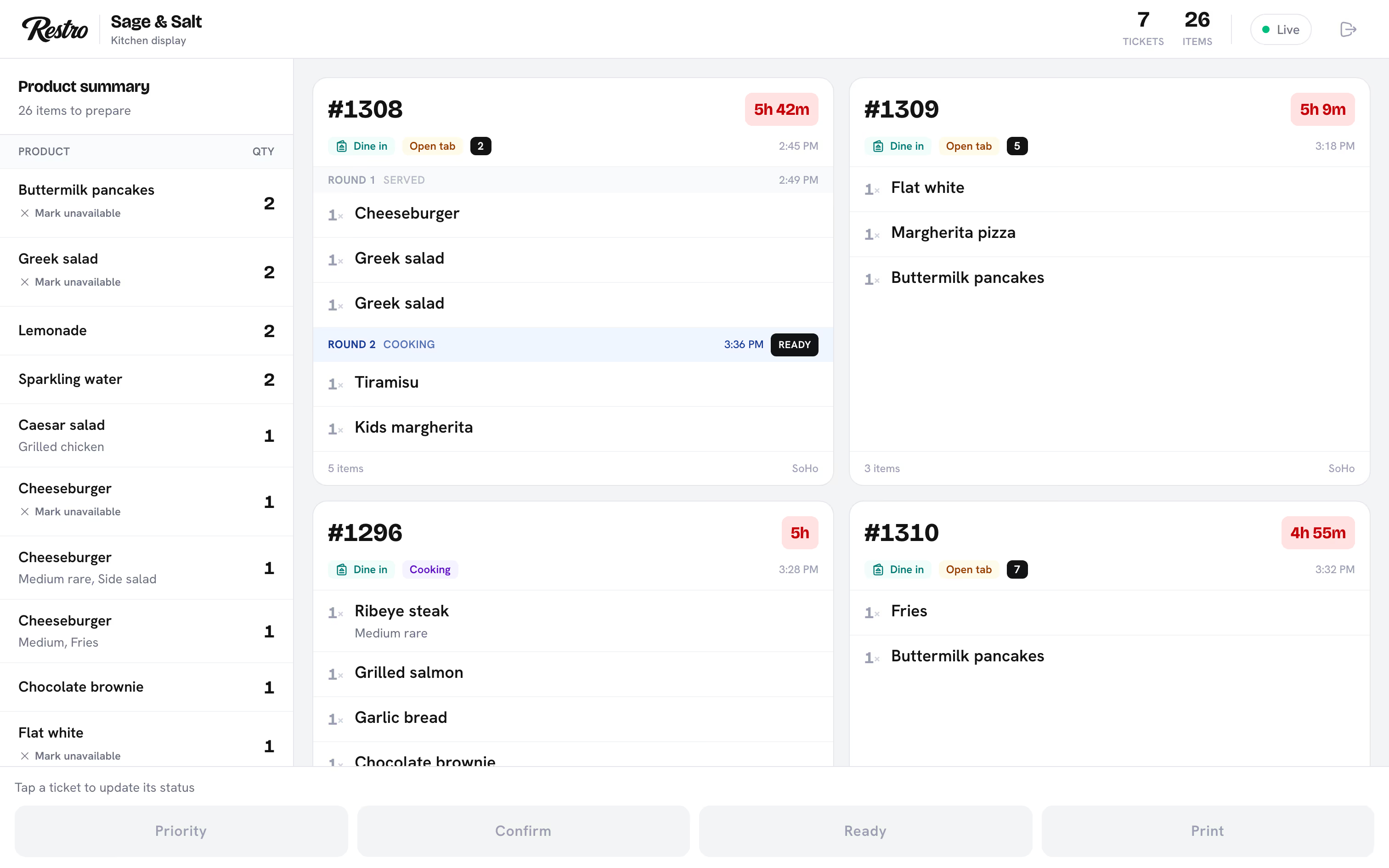
When the lead time is reached the order moves into the normal queue and behaves like any other ticket. Nothing about the order lifecycle changes, only the moment it starts.
#Cancelling
A customer can cancel their own pre-order from their order page until it reaches the kitchen. After that they need to call you, as with any other order.
Staff can cancel a pre-order at any time from Orders. Cancelling returns stock and releases any discount redemption.
#Finding pre-orders
On Orders, set the Timing filter to Scheduled only to see pre-orders sorted by when they are due. Each row shows its due time, and the order's page shows the slot and whether it has been sent to the kitchen yet.
#If a branch closes
Marking a branch temporarily closed stops new bookings straight away. It does not cancel pre-orders already accepted; those still reach the kitchen at their lead time so you can decide. Cancel the ones you cannot cook and refund the customer as usual.
#Where customers see it
The time slot picker appears at checkout on your website and in your app. Order now stays selected by default, and the picker only opens if the customer chooses to schedule. Staff taking an order on the point of sale get the same choice.
Did this page miss something? Tell us.
Back to top