Skip to content
Help

Point of sale

Taking orders at the counter and at the table.

Website, app & POS11 min read

The point of sale is a fast order-entry screen for staff. It runs in a browser, on tablets, and as a desktop app on macOS and Windows, and it reads the same menu, prices, and availability rules as your storefront.

A tablet running the POS is paired to one branch once, from Settings → Devices, and staff tap in on it with their PIN for the rest of its life.

#Taking an order

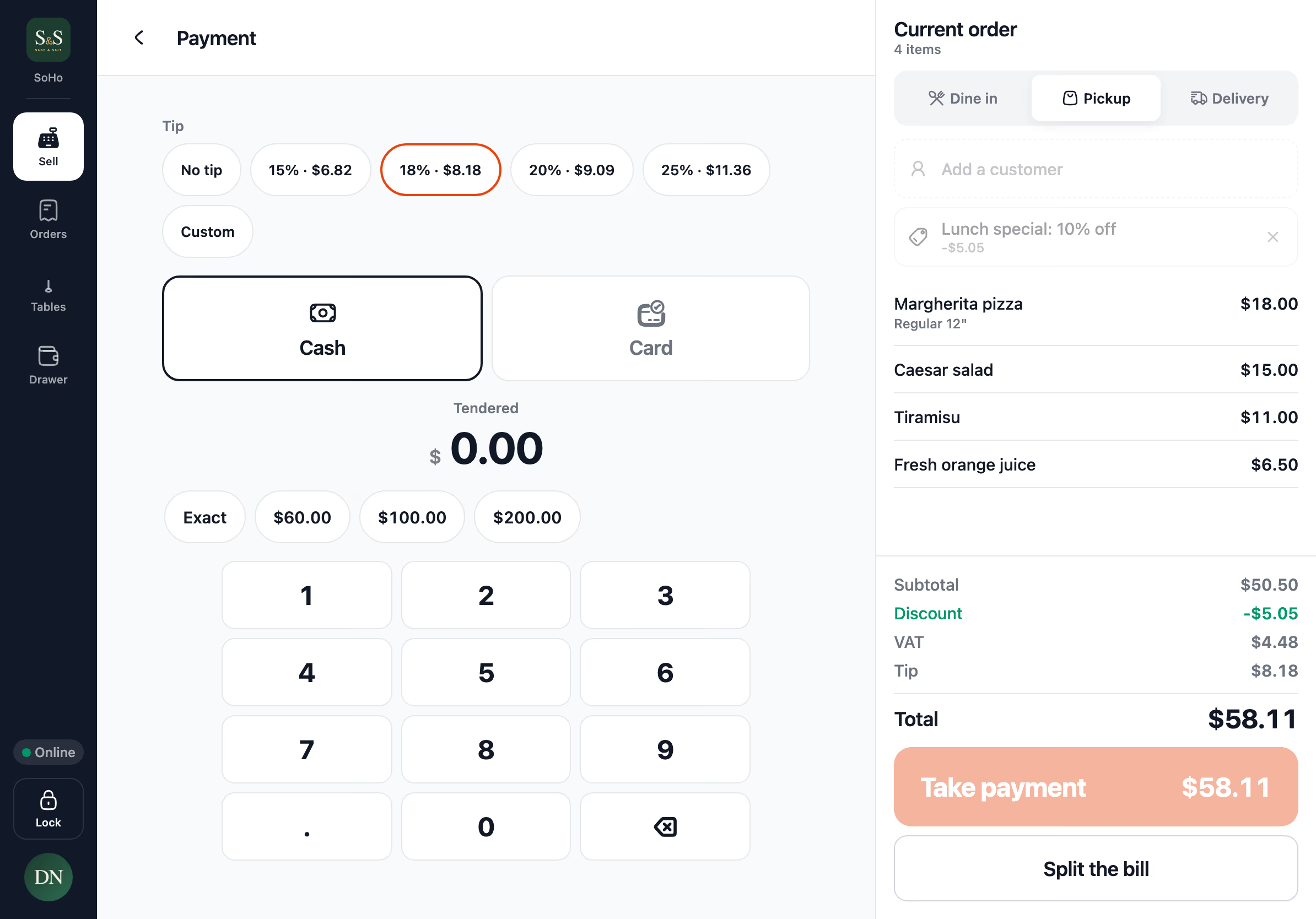
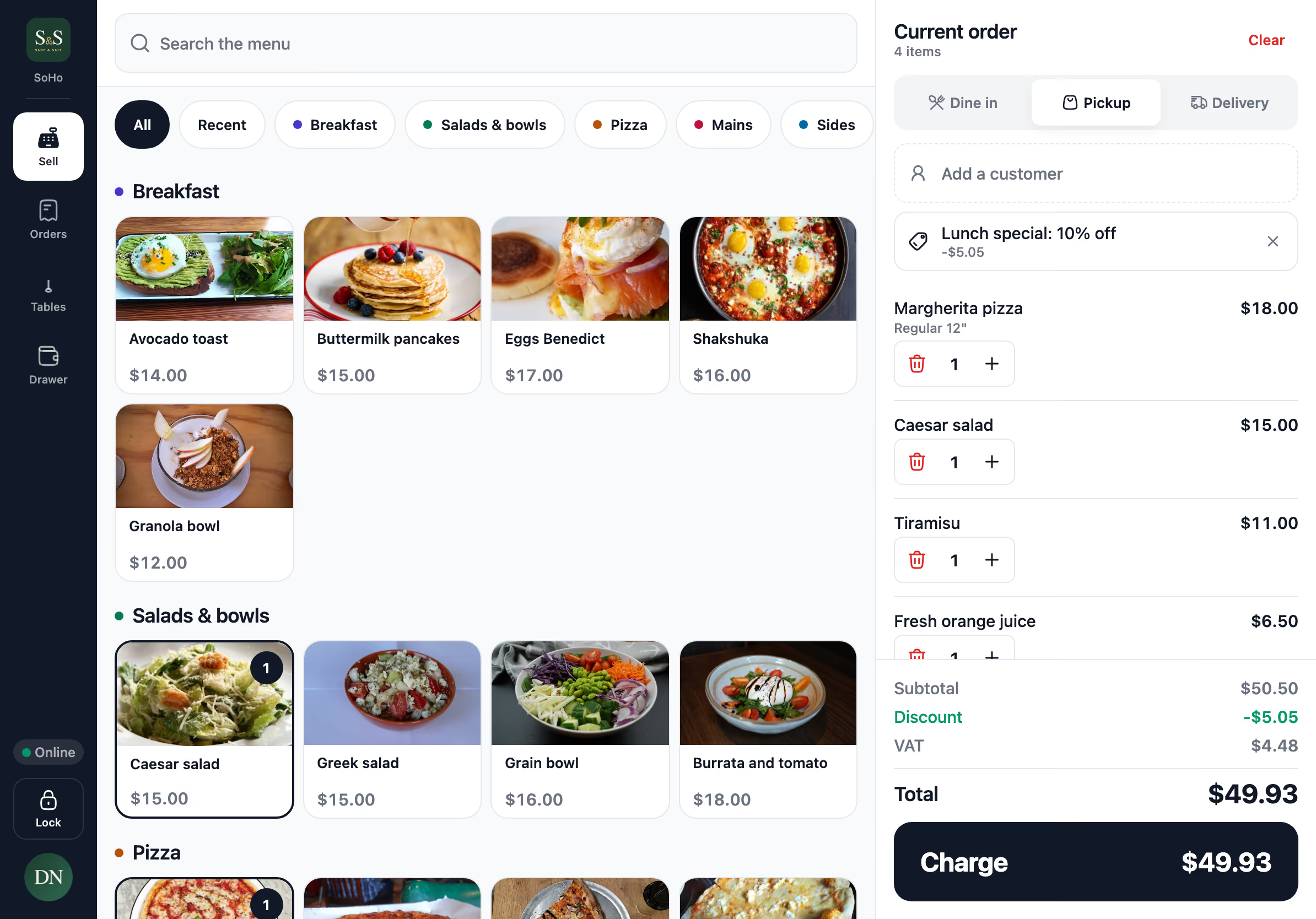
Pick a type — pickup, delivery, or dine-in — add items, apply customizations, and take payment. Prices, VAT, and availability all come from the selected branch.

#Draft orders

An order started but not sent is a draft. Drafts are how you build a table's order over several visits without sending half a ticket to the kitchen. Orders → Drafts lists them.

#Attaching a customer

Most counter sales are anonymous, and they stay that way — the customer row on the ticket is optional and never blocks a sale.

When it matters, tap it and search. Phone first, since that is how a caller identifies themselves, but a name or an email works too. Numbers match however they were stored, so 0501234567 finds a customer saved as +971501234567.

If nobody matches, create them on the spot. A name is the only thing required; everything else can be filled in later. Customers created here are recorded as coming from the till, so acquisition reporting stays honest about which channel found them.

Attaching a customer shows their past orders, favourites, saved addresses, points balance, and any notes. Order the usual puts their most recent still-orderable order straight onto the ticket, which is most of what a repeat phone order needs. Notes are shared with the dashboard, so anything written at the counter is on the customer's record afterwards.

Searching and attaching needs customers:read; creating one or editing a note needs customers:write.

#Points and store credit at the till

A till order earns points on exactly the same rules as a storefront order — same rates, same item and category bonuses — and points land when the order is completed, not when it is paid.

To spend a balance, attach the customer and tap Use credit on the payment screen. The terminal shows the balance and what it is worth before anything is applied, and never redeems past the balance, past the order, or past the redemption limits set on the loyalty extension. Redemption is recorded separately from discounts, so promotion performance and credit redemption stay separately reportable.

The redeemed amount and the customer's new balance both print on the receipt. Voiding a till order, or refunding it in full, returns the credit it spent.

#Delivery addresses at the counter

Choosing Delivery adds an address row to the ticket, and the order cannot be charged until it is filled in.

Start from one of the customer's saved addresses, or search for a new one and pick it from the suggestions. Once the address has a location, the terminal checks it against your delivery zones and shows the zone, its fee, and its minimum order before you take the order. An address no zone covers is refused outright, and if another branch does deliver there, the terminal names it.

A ticket under the zone's minimum is blocked, with the shortfall spelled out so the cashier can offer to make it up.

Offline, or with no maps key configured, the address is typed out by hand and marked Zone unchecked. The order is still taken; the zone and fee are worked out when it reaches the server. The address and its coordinates go onto the order, which is what the Driver App navigates from.

#Discounts at the counter

Staff with discounts:apply can apply a discount to the order in front of them, including ones that would not have applied automatically. Creating discounts is a separate permission.

#Payments

Cash, card on delivery, and any online provider you have configured. Cash payments through the POS post to the open cash session for that branch, which is what makes the end-of-shift variance meaningful.

#Signing in and out on a terminal

A terminal is paired to one branch once, and stays paired. Individual staff sign in on top of that pairing with their six-digit PIN, so a shared till can change hands all day without anyone re-pairing it.

Locking the terminal signs the person out and clears their details from the screen. The pairing survives, so the next person only needs their PIN. Terminals also lock themselves after a stretch of inactivity.
#Working offline

The terminal keeps selling when the network drops. It holds the menu, prices, branch settings, and today's orders on the device, so it can cold-start and take an order with no connection at all.

Orders taken offline are saved on the terminal and sent on their own the moment the network is back. Each one carries a key that the server uses to recognise a repeat, so a retry after a dropped connection cannot produce a second order. Order numbers are assigned by the server, never by the terminal, which is why an offline order gets its number when it arrives rather than when it is taken.

Because the number does not exist yet, an order taken offline gets a provisional reference instead — the terminal's initials and a counter, like T3-014. It shows on screen, on the receipt and on the kitchen ticket, and the paper says the order number is still pending so nobody reads the reference as a number. When the order lands, the reference is mapped to the real number everywhere the terminal shows it.

Offline orders appear in Orders immediately, as ordinary rows with their reference, time, total and a Not sent marker. Nothing is hidden behind a queue screen.

The indicator on the terminal is always one of three things:

  • Online — everything this terminal has taken is on the server.
  • Syncing — some orders are still on their way, with a count.
  • Offline — the terminal is saving locally.

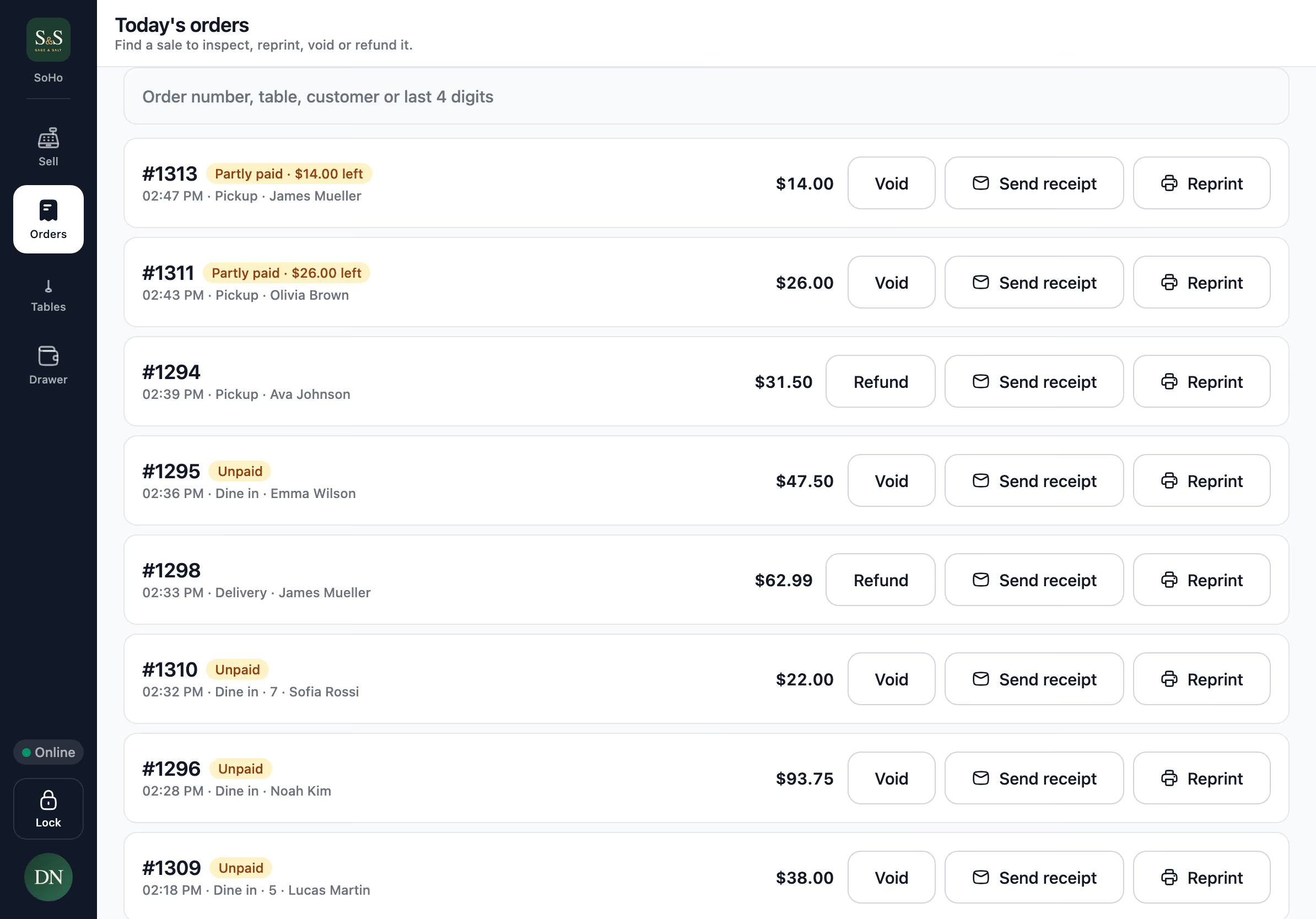
Tap the indicator to see exactly what is waiting. Each entry reads in plain language — the order type, the item count, the total — with the reason anything is stuck. You can retry a stuck order, or discard it after a confirmation. Orders that have not reached the server yet also appear in Orders, marked as not sent, so nobody has to guess whether a ticket landed.

#Cash, printing and the drawer

Cash is the offline payment method, and it works end to end with nothing reachable. The sale is priced on the terminal, the drawer kicks, the receipt and the kitchen ticket print from the printer attached to that till, and the cash is added to the drawer's expected amount straight away. The kitchen keeps cooking even when the kitchen screen cannot be reached.

Printing offline uses the same receipt layout as printing online. The one thing missing is the logo, which needs the network to fetch.

#Discounts offline

The terminal holds the discounts your branch is running, so it can work out what a cart qualifies for with no connection. Type a code or pick from the list exactly as you would online.

Whether a usage-limited discount is still available is the one thing a disconnected till cannot know. The discount is applied at the price the customer was quoted, and confirmed when the order reaches the server. If it ran out in the meantime the order is still honoured at that price and flagged, rather than repriced after the customer has paid.

#What does not work offline

  • Card payments. Authorising a card needs the network. The terminal says so and offers cash instead.
  • Live stock and 86'd items. Availability comes from the last sync, so an item taken off the menu while the terminal was offline is only caught when the order syncs.
  • Closing the drawer with a large variance. A manager's PIN is verified on the server, so an over-limit close waits for the network.

If an item was 86'd, repriced, or removed while an order sat in the queue, that order is not silently dropped or silently sent. It is held and shown to staff with the reason, to retry or discard.

#After a long outage

When the terminal reconnects it sends its queue first, then refetches. Anything another terminal or the kitchen has already moved on is left alone — the server's version of an order always wins over a stale instruction from a terminal that was offline.

Each sale keeps the time it was actually taken, not the time it synced. That is what puts an offline sale in the drawer session that was open when the customer paid, even if it arrives after that session was counted and closed. See Cash management for what happens to a session that has already been closed.

#Locking while orders are waiting

Held orders belong to whoever captured them, and only send while that person is signed in.

If you lock the terminal with orders still waiting, the terminal says so and asks you to confirm. Confirming is safe — nothing is thrown away. The orders stay on that terminal and send when that same person signs back in. Until then, the lock screen shows how many are waiting, and the next person to sign in sees that someone else's work is still queued. Sign back in to finish sending them before the terminal moves branches or gets unpaired.

#Losing access

Removing a terminal from Settings → Devices, or removing a staff member, takes effect within seconds — including on screens that are already open. A signed-in terminal does not keep working until someone reloads it. The same applies when a role change takes away someone's POS access: they are returned to the lock screen.

#Receipts

A paid sale prints its receipt on its own. Which printer it lands on depends on the terminal: a till with a printer attached to it prints there, and everything else goes to the branch's networked printers through the print agent. Cashiers never pick — the terminal knows which one it owns.

Kitchen tickets are unaffected by that choice. They keep routing by category to the station printers set up in Settings → Printing, so the hot line, the cold line, and the bar each get their own ticket.

Reprints are available from Orders on any of today's sales, and a reprint is marked as a duplicate on the paper so a reprinted receipt is never mistaken for a second sale.

If a print fails, the terminal that triggered it says so immediately and in plain language — out of paper, cover open, printer not answering, or no printer set up at all. Nothing fails silently.

#Digital receipts

Instead of paper, or alongside it, a receipt can go to the customer by email or text. Send receipt appears on the payment confirmation and against every order in Orders.

The email is the full itemised receipt; the text is a short summary. Both carry the order tracking link, so the customer can follow the order without an account.

If a customer is attached to the order, their email and phone are filled in already. Otherwise staff type it once at the counter.

Sending a receipt taken offline is safe: it queues on the terminal and sends itself when the network is back, exactly like an offline order.

Receipts are transactional. Sending one never signs a customer up for marketing, and an address typed at the till is not added to any marketing list.

#Several tills in one branch

Every terminal in a branch watches the same live feed, so two tills, the kitchen and the floor never hold different versions of the same service.

  • An order taken on one till appears in Orders on the others, and a status change from the kitchen screen lands everywhere.
  • An item 86'd anywhere greys out on every till within a second, without anyone reloading.
  • Opening or closing the branch from the dashboard reaches the tills straight away.

If the live connection is blocked — some networks will not pass it — the terminals fall back to refreshing on a timer instead. They stay correct, just less immediate, and catch up in full the moment the connection returns.

#Tables

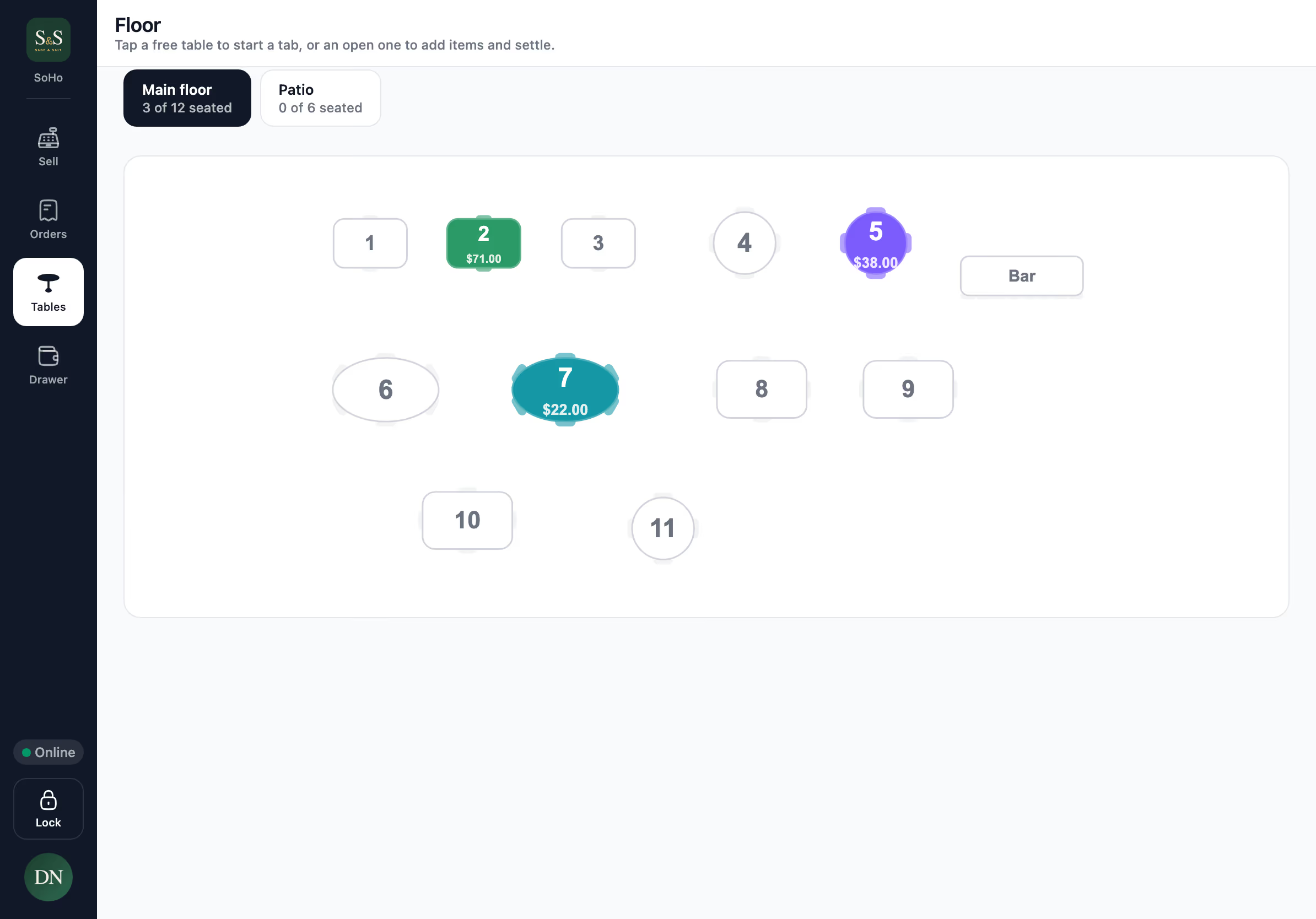
Tables on a dine-in branch lists every tab still running, with what each one owes. Settling a table takes payment for its unpaid orders and closes it.

Two cashiers cannot settle the same table. The first one through wins; the second is refused outright and told who settled it, rather than the table being paid for twice. This is decided on the server, so it holds even when both tills act at the same moment.

#On a real till

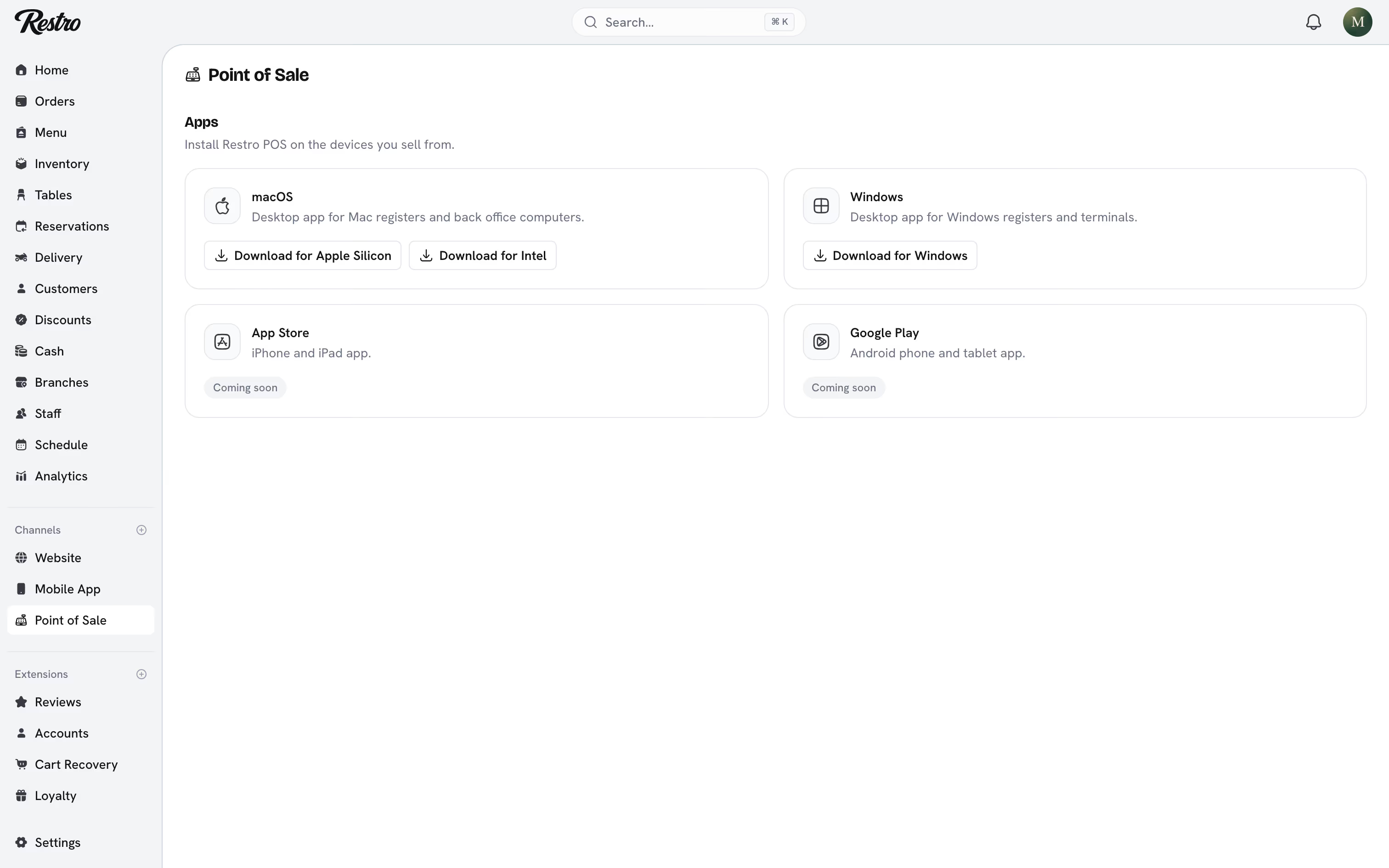
The desktop app is the same POS with access to the hardware sitting on the counter. Open Account → Hardware on the terminal to set it up. See terminal hardware.

#In a browser

The POS also runs in a browser with nothing to install, which is how a laptop or a spare machine joins service. From Chrome or Edge, Install puts it in its own window with an icon, and it starts and takes orders offline the same way the tablet does.

A counter with a keyboard never has to touch the screen:

KeyWhat it does
F2Jump to the item search
F3Open orders
F4Open tables
F8Charge the ticket
F9Open the cash drawer screen
EnterConfirm the payment, or start the next order
EscStep back
Ctrl / ⌘ + LLock the terminal

The layout goes from a 10-inch tablet up to a 27-inch counter display: the ticket sits beside the menu once there is room for it, and folds into a bar along the bottom when there is not.

#Who gets it

The pos and cashier app scopes. Cashiers and waiters have them and no dashboard access — they sign in and land straight on the till.

Did this page miss something? Tell us.

Back to top